
Documentation Index

Fetch the complete documentation index at: https://docs.kodeflowstudios.com/llms.txt

Use this file to discover all available pages before exploring further.

Setting up the UI

Continuing off of the UI from the last example, you can now make a button and save it as a prefab and delete it from the scene, we’ll instantiate this later to use it for making the choices!

Writing the Dialogue

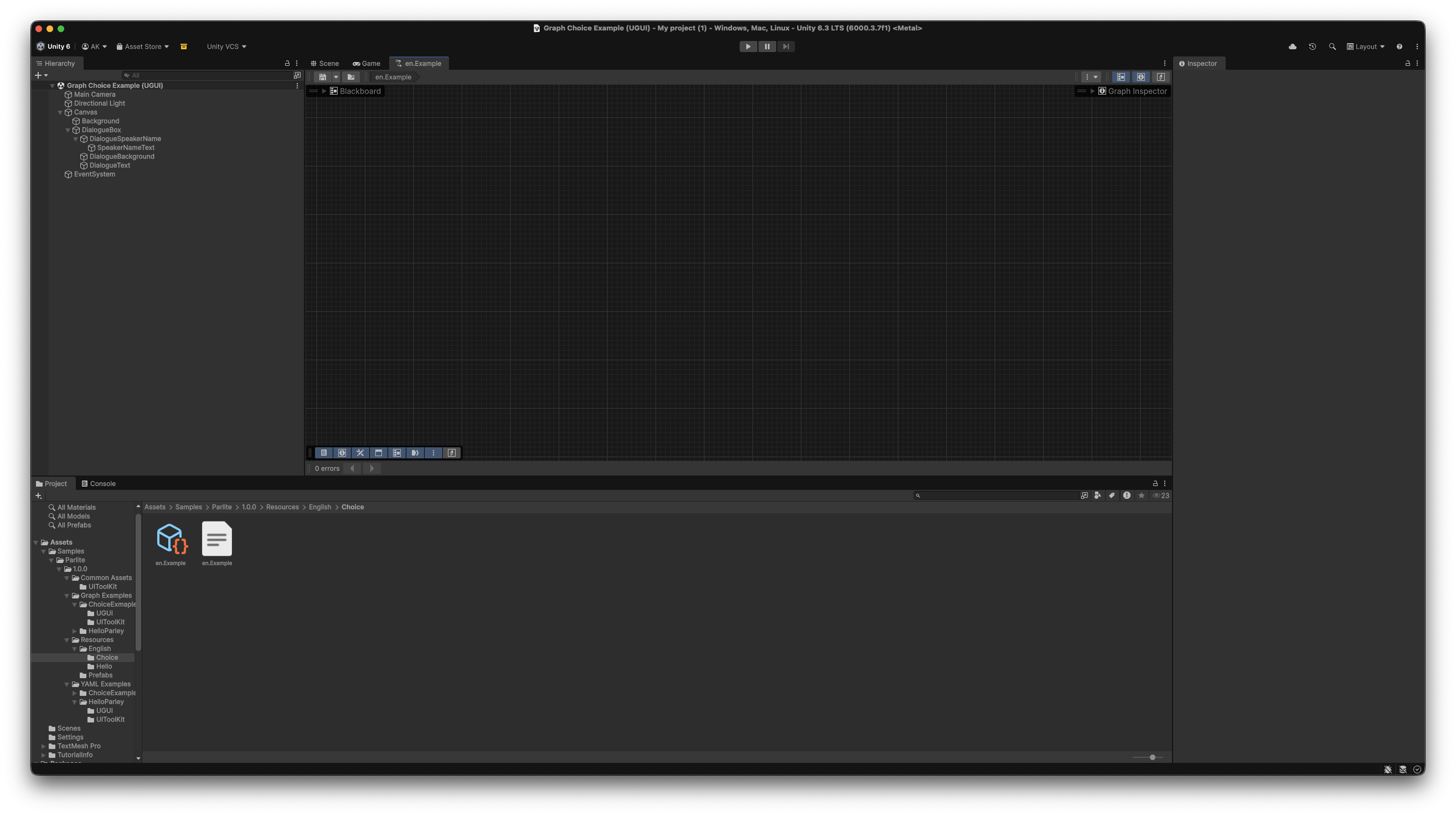
Create a folder at Resources/English/Choice/ Right click inside the folder to create a ParleyGraph from Create/Parley/Graph and name it en.Example. After double clicking the graph to open it, you will be greeted with the the graph view where you’ll be doing the visual design of your dialogues. Parlite Graph View From the Context Menu, create a StartNode. Drag from the out port on the StartNode and select DialogueNode. Create a few dialogue nodes and fill their Speaker and Text fields with whatever you want, you can use the example below as reference or copy the same structure and text.
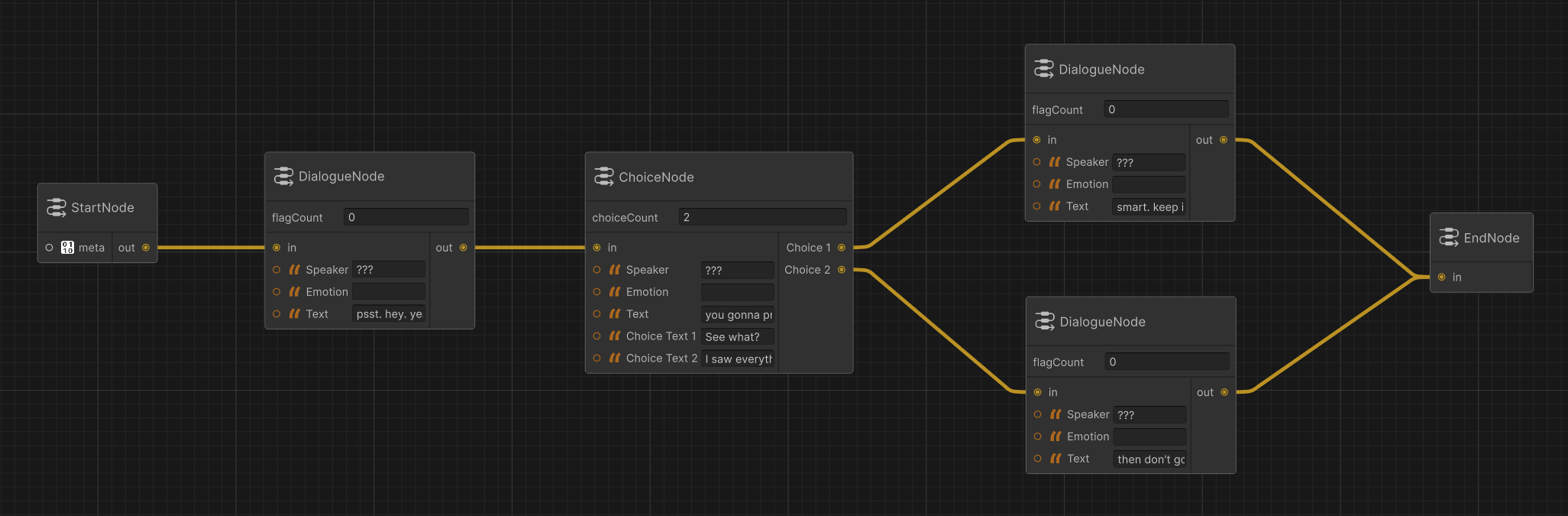
Please note that in Parlite you are limited to a total of 10 nodes with a maximum of 2 choices per node.
Dialogue:
  node_1:
    Speaker: "???"
    Text: "psst. hey. yeah you."
    NextNode: node_2
  node_2:
    Speaker: "???"
    Text: "you gonna pretend you didn't see that back there?"
    Choices:
      - Text: "See what?"
        NextNode: node_3
      - Text: "I saw everything."
        NextNode: node_4
  node_3:
    Speaker: "???"
    Text: "smart. keep it that way. forget my face."
  node_4:
    Speaker: "???"
    Text: "then don't go home tonight."
Example Parlite Graph

Setting up the Script

And with that, we’re ready to get into the script side of things! Create the following C# script:
ChoiceExample.cs
using System.Collections.Generic;
using UnityEngine;
using TMPro;
using UnityEngine.UI;
using KodeFlowStudios.Parley.GraphCore;

public class ChoiceExample : MonoBehaviour
{
	public TMP_Text speakerNameText;
	public TMP_Text dialogueText;
	public GameObject choiceButtonPrefab;

	ParleyGraph parleyGraph;

    void Start()
    {
		Dialogue();
    }

	async void Dialogue()
	{
		parleyGraph = new ParleyGraph("Choice", "Example");

		while (parleyGraph.ConversationEnded != true)
		{
			speakerNameText.text = parleyGraph.CurrentNode.Speaker;
			dialogueText.text = parleyGraph.CurrentNode.Text;

			var choices = parleyGraph.GetCurrentChoices();
			if (choices.Count > 0)
			{
				float yOffset = 0f;
				List<GameObject> choiceButtons = new();

				for (int x = 0; x < parleyGraph.CurrentNode.Choices.Count; x++)
				{
					int choiceIndex = x;
					GameObject choiceButton = Instantiate(choiceButtonPrefab, transform);

					RectTransform rt = choiceButton.GetComponent<RectTransform>();
					RectTransform prt = GetComponent<RectTransform>();

					float yPos = -(prt.sizeDelta.y/2) - (rt.sizeDelta.y/2) - (rt.sizeDelta.y*x);
					rt.localPosition = new Vector3(0, yPos, 0);

					transform.position = new Vector3(transform.position.x, transform.position.y + rt.sizeDelta.y, transform.position.z);
					yOffset += rt.sizeDelta.y;

					choiceButton.GetComponentInChildren<TMP_Text>().text = parleyGraph.CurrentNode.Choices[x].Text;

					choiceButtons.Add(choiceButton);

					choiceButton.GetComponent<Button>().onClick.AddListener(() =>
					{
						parleyGraph.ChoiceMade(choiceIndex);
						foreach (GameObject btn in choiceButtons) Destroy(btn);
					});
				}

				await parleyGraph.GetPlayerChoice();
				transform.position = new Vector3(transform.position.x, transform.position.y - yOffset, transform.position.z);
			}
			else await parleyGraph.OnNextDialogue;
		}

		parleyGraph = null;
	}
}

Wiring things up

Back in the Unity editor, add the ChoiceExample.cs script to a GameObject in your scene, and set the Button Prfab from the UI section. Script Variable Fields

Testing

Hit play. Left click in the Game View to advance through the dialogue — you should see the speaker and text update with each click, make your choices by clicking on the when they get created, and the dialogue ends cleanly on the last node.